


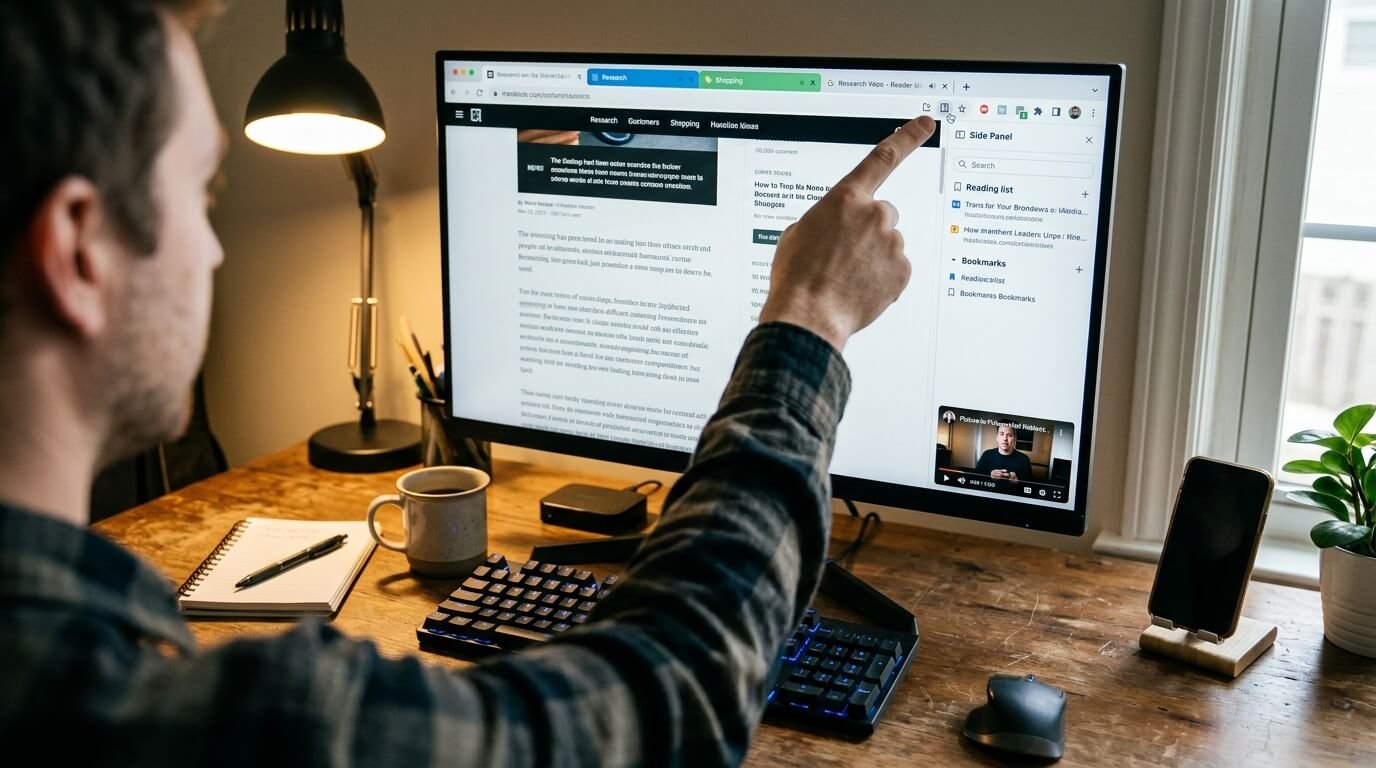
Most people use a browser every day for searching, watching videos, checking email, shopping, and reading articles. Yet many useful browser features remain hidden behind menus, shortcuts, or small icons that are easy to ignore.
The interesting part is that you do not always need an extension or another application to get more from your browser. Several built-in tools can help organize tabs, improve reading, control media, manage permissions, and make everyday browsing much smoother.
Tab Groups Are One of the Browser Features Most People Overlook
If you regularly keep dozens of tabs open, tab groups can make your browser much easier to manage. You can place related tabs together, give the group a name, and collapse it when you do not need to see every page.
For example, someone researching a project could create separate groups for research, email, documents, shopping, and entertainment. Instead of having a long row of unrelated tabs, everything can be arranged according to purpose.
In Chrome, tab groups can also be collapsed so that only the group name or indicator remains visible. This is particularly useful when you want to keep research available without allowing it to take over the entire tab bar.
| Feature | What It Can Help With | Why People Miss It |
|---|---|---|
| Tab Groups | Organizing many open tabs | Hidden behind the tab menu |
| Reading Mode | Cleaner article reading | Small or less obvious button |
| Picture-in-Picture | Watching videos while browsing | Not always visible |
| Tab Search | Finding an open tab quickly | Easy to overlook |
| Keyboard Shortcuts | Faster browser control | Requires remembering commands |
| Site Permissions | Controlling camera, microphone, and more | Found inside settings |
| Browser Zoom | Making pages easier to read | Often forgotten |
| Guest Mode | Separate browsing sessions | Buried in profile options |
Reading Mode Makes Long Pages Easier to Follow
Reading Mode is another useful feature that many people never explore. Rather than viewing a page with advertisements, menus, sidebars, and other distractions, reading mode can present the main text in a cleaner format.
Chrome’s Reading Mode allows users to change elements such as font size, typeface, color theme, line spacing, and letter spacing. Some versions also provide a read-aloud option, which can be useful when you want to listen instead of constantly looking at the screen.
This can be especially helpful for long articles, educational material, and documentation. Instead of searching for a separate reading extension, check whether your browser already provides a similar feature.
Picture-in-Picture Is Useful Beyond Watching Videos
Picture-in-Picture allows supported videos to appear in a small floating window while you continue browsing another tab. This means you can watch a tutorial while following instructions on another website.
It can also be useful for online classes, interviews, presentations, and other videos where you need to keep the content visible while doing something else.
Chrome supports Picture-in-Picture through its media controls, while Firefox also provides a dedicated Picture-in-Picture experience with playback controls and keyboard shortcuts.
Tab Search Can Save Time
When too many tabs are open, manually searching through them can become frustrating. Tab Search provides a much faster way to locate a particular page without clicking through every open tab.
In Chrome, users can open Tab Search and type words related to the website or page they want. The browser then shows matching open tabs, making it easier to jump directly to the right one.
This is one of those browser features most people overlook because the search option is relatively small. Once you start using it, however, it can become a regular part of your browsing routine.
Keyboard Shortcuts Are Hidden Time-Savers
You do not have to use the mouse for every browser action. Keyboard shortcuts can help you open history, downloads, bookmarks, find text on a page, move between tabs, and access other common functions.
For example, Chrome supports Ctrl + F for finding text on the current page and Ctrl + H for opening browsing history. Ctrl + Shift + T can also restore a recently closed tab, which is particularly handy after accidentally closing something important.
You do not need to memorize every shortcut. Learning just five or six commands that match your daily habits can make browsing feel considerably faster.
Browser Zoom Can Improve Everyday Reading
Browser zoom is a simple feature that is often ignored until someone struggles to read a website. It lets you increase or decrease the size of content without changing the entire computer’s display settings.
Zoom can be useful on websites with unusually small text, crowded layouts, or pages that were designed for different screen sizes. You can also reduce the zoom level when a page feels too large.
Instead of repeatedly leaning toward the screen or changing system display settings, try the browser’s built-in zoom controls first. It is a small adjustment that can make websites more comfortable to use.
Site Permissions Give You More Control
Modern websites can request access to features such as your camera, microphone, location, notifications, and other browser capabilities. Many people simply click Allow without checking what they are permitting.
Browser permission settings let you review and change these choices. If a website no longer needs access to a microphone or camera, you can remove its permission instead of leaving it active.
Chrome provides controls for managing site permissions, including camera and microphone access. These settings are worth checking occasionally, especially if you visit many unfamiliar websites.
Guest Mode Can Keep Browsing Separate
Guest Mode can be useful when another person needs to use your browser temporarily. Rather than allowing someone to browse through your normal profile, bookmarks, and other personalized settings, a guest session provides a separate browsing environment.
This is also useful when you want to test whether a website works without relying on your normal browser profile. It can help separate temporary browsing activity from your usual setup.
Chrome includes Guest browsing among its profile options, although the exact experience can vary between browsers and devices.
Save Pages for Later Instead of Keeping Them Open
Another overlooked browser habit is keeping dozens of tabs open simply because you do not want to lose a page. Modern browsers offer ways to save useful pages for later through bookmarks, reading lists, or other built-in saving tools.
Saving an article means you can close the tab without worrying about finding it again. This can also reduce the temptation to maintain a huge collection of permanently open tabs.
A simple system can work well. Use bookmarks for pages you expect to revisit regularly and a reading list for articles or information you plan to check later.
Browser Features Most People Overlook Can Improve Daily Browsing
The most useful browser features are not always the newest or most impressive ones. Often, the tools that save the most time are small features already sitting inside menus you rarely open.
Tab groups can organize your workspace, Reading Mode can make articles easier to follow, and Picture-in-Picture can help with multitasking. Tab Search and keyboard shortcuts can also reduce repetitive clicking.
It is worth spending a few minutes exploring your browser’s settings. You may discover that a problem you were planning to solve with an extension already has a simple built-in solution.
FAQs About Browser Features Most People Overlook
What browser features do people commonly overlook?
Tab groups, Reading Mode, Picture-in-Picture, Tab Search, keyboard shortcuts, zoom controls, and site permissions are among the features many users rarely explore.
Are hidden browser features available on every browser?
Not always. Chrome, Firefox, Edge, Safari, and other browsers have different tools and settings. A feature may also work differently depending on the operating system and browser version.
How can I find useful browser features?
Open your browser’s main settings and look through sections related to tabs, accessibility, privacy, media, appearance, and shortcuts. You can also check the browser’s official help pages.
Is Reading Mode useful for every website?
No. Reading modes generally work best with text-heavy pages. Interactive websites, forms, image galleries, and other complex pages may not display properly in a simplified reading view.
What is the easiest browser feature to start using?
Tab Search is a good starting point if you frequently have many tabs open. If you mainly read articles, Reading Mode may be more useful.
Can browser shortcuts really save time?
Yes. Even learning a few shortcuts for finding text, reopening tabs, checking history, and switching tabs can reduce repetitive mouse movements.
Should I check browser site permissions?
Yes. Reviewing permissions occasionally can help you see which websites have access to features such as your camera, microphone, notifications, or location.
Do I need browser extensions to improve my browsing experience?
Not necessarily. Extensions can add useful functions, but browsers already include many tools that users never explore. Checking built-in features first can sometimes eliminate the need for an additional extension.

1 Comment
Pingback: Ways to Free Up Digital Storage Without Losing Important Files - Paperomagazine